Post Production Video Editing: Complete Guide for 2026
Discover how post production video editing transforms raw footage into professional content. Learn workflows, tools, and outsourcing tips.
10 Min. ReadRead More
5 dedicated editor spots open this week. Book a call to reserve →

 Kiara WalkerCocktales Podcast

Discover the best cheap video editing software for creators, marketers, and agencies in 2026. Quality editing doesn’t have to break the bank.
September 13, 2026
Finding the best cheap video editing software shouldn't feel like choosing between quality and affordability. Whether you're a content creator building your personal brand, a small business owner managing marketing videos, or an agency juggling multiple client projects, the right editing tool can transform your workflow without emptying your wallet. In 2026, the video editing landscape offers more budget-friendly options than ever before, many rivaling premium software in features and performance. This guide breaks down the top affordable editors, what to look for when shopping on a budget, and how to make smart choices that support your content goals.
The gap between expensive professional suites and affordable alternatives has shrunk dramatically. Free and low-cost editors now include features that were premium-only just a few years ago: multi-track timelines, color grading, motion graphics templates, and support for 4K footage.
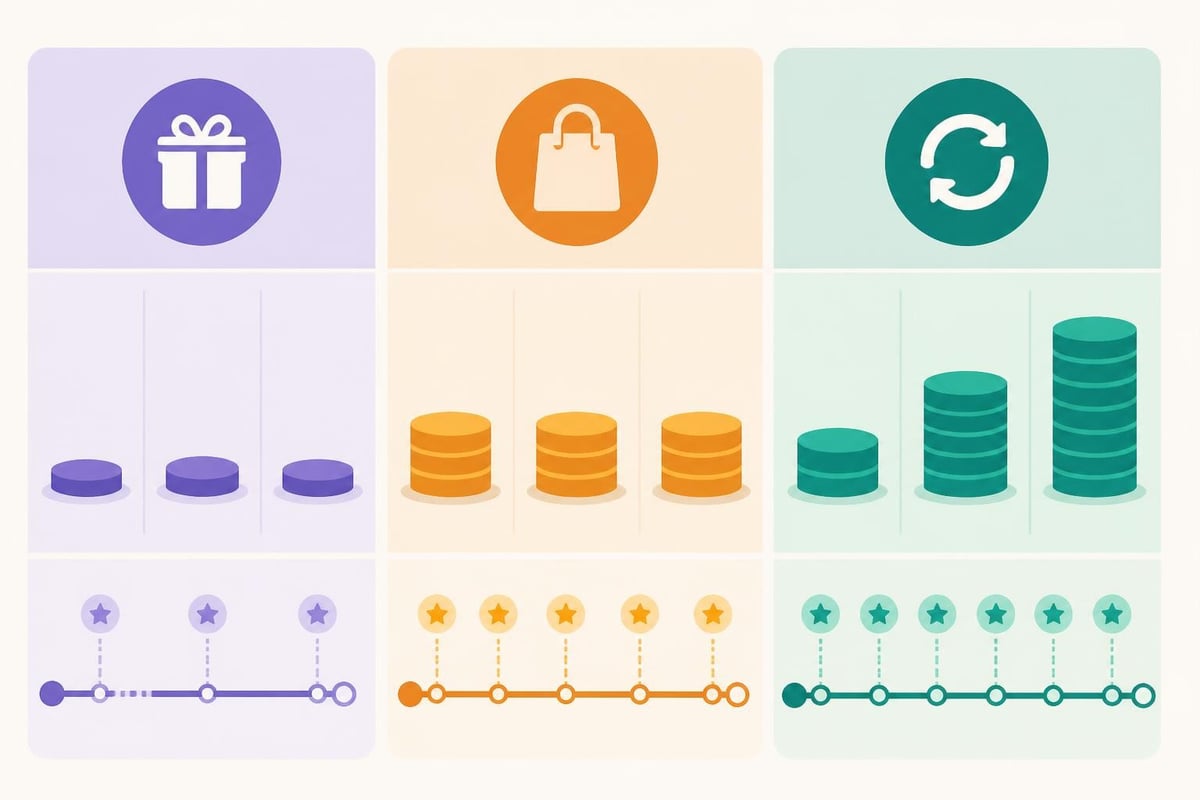
The shift happened for three reasons:
Many creators assume budget software means compromising on output quality. That's outdated thinking. The best cheap video editing software today handles professional codecs, exports broadcast-ready files, and integrates with the same platforms as premium tools.
Your hardware matters more than your software price tag. A $300 editing suite on an underpowered laptop will frustrate you more than a free editor on a well-specced desktop. Before shopping for software, benchmark your system using tools like Puget Bench for Creators to understand what your machine can handle smoothly.
Price isn't the only factor that defines affordable software. The best cheap video editing software balances upfront cost with long-term value.
| Cost Model | Pros | Cons | Best For |
|---|---|---|---|
| Free Forever | Zero cost, no commitment | Limited features, export restrictions | Hobbyists, testing workflows |
| One-Time Purchase | Own it permanently, predictable cost | No updates after year one typically | Budget-conscious professionals |
| Low Monthly Subscription | Always current, predictable budgeting | Adds up over years | Growing creators, agencies |
Consider total cost of ownership. A $20/month subscription costs $240 annually. Over three years, that's $720. Meanwhile, a $299 perpetual license might serve you for five years at the same total cost, though you'll miss feature updates.
DaVinci Resolve continues to dominate the "best cheap video editing software" conversation because its free version includes professional-grade color grading, Fairlight audio tools, and support for virtually every codec you'll encounter. The catch? The free tier limits collaboration features and caps exports at Ultra HD rather than 8K.
Key strengths:
The learning curve is steeper than beginner-focused editors, but free training resources from Blackmagic Design help new users get productive quickly. If you're serious about video and willing to invest learning time, Resolve's free tier delivers incredible value.
Shotcut stands out as completely open-source software with no hidden costs, watermarks, or export limitations. Built on the FFmpeg framework, it supports hundreds of audio and video formats natively without requiring conversion.
The interface feels less polished than commercial alternatives, but functionality doesn't suffer. Shotcut handles 4K editing, offers advanced filters, supports proxy editing for smoother performance, and includes keyframe animation for effects and motion.
Best for: Creators who value privacy (no cloud connection required), Linux users, and anyone wanting full control over their editing environment without subscription pressure.
Wondershare Filmora targets the sweet spot between simplicity and capability. At $49.99 annually (or $79.99 for perpetual license), it's genuinely affordable while maintaining an intuitive drag-and-drop interface that doesn't intimidate beginners.
Filmora's 2026 version includes AI-powered features like auto-reframing for social media, text-to-speech, and smart scene detection. The built-in library of effects, transitions, and titles saves hours of hunting for third-party assets.
| Feature | Free Trial | Annual Plan | Perpetual License |
|---|---|---|---|
| Watermark | Yes | No | No |
| Export Limit | 720p | Unlimited | Unlimited |
| Updates | None | Included | First year only |
| Price | $0 | $49.99/year | $79.99 one-time |
The biggest limitation is the free trial's watermark and resolution cap. Test the workflow during the trial, then commit if it fits your needs.
CapCut exploded in mobile editing and brought the same accessible approach to desktop in 2024. The desktop version remains completely free in 2026 with no watermarks, making it exceptional value for creators focused on short-form content.
What makes CapCut unique:
CapCut's simplicity becomes a limitation for complex projects. No multi-cam editing, limited audio mixing, and fewer advanced color tools. But for social media creators pumping out daily content, it's hard to beat the speed and zero-dollar price tag.
For creators looking to transform raw footage into polished content without the editing headaches, these tools offer a starting point.
Not all cheap editors are created equal. Before downloading, verify these baseline capabilities exist in any tool you're considering.
Even simple projects benefit from multiple video and audio tracks. You need the flexibility to layer B-roll over interviews, add separate music and dialogue tracks, and build complex sequences without fighting your software.
The best cheap video editing software offers at least 10 video tracks and 20 audio tracks. Anything less restricts creative options and forces workarounds that waste time.
Your editing software needs to handle the files your camera produces and export in formats your platforms require. Understanding codec mappings and container formats helps you avoid frustrating compatibility issues.
Minimum codec support should include:
Cheap doesn't mean limited. Many free editors handle professional codecs better than expensive legacy software that hasn't kept pace with current industry standards.
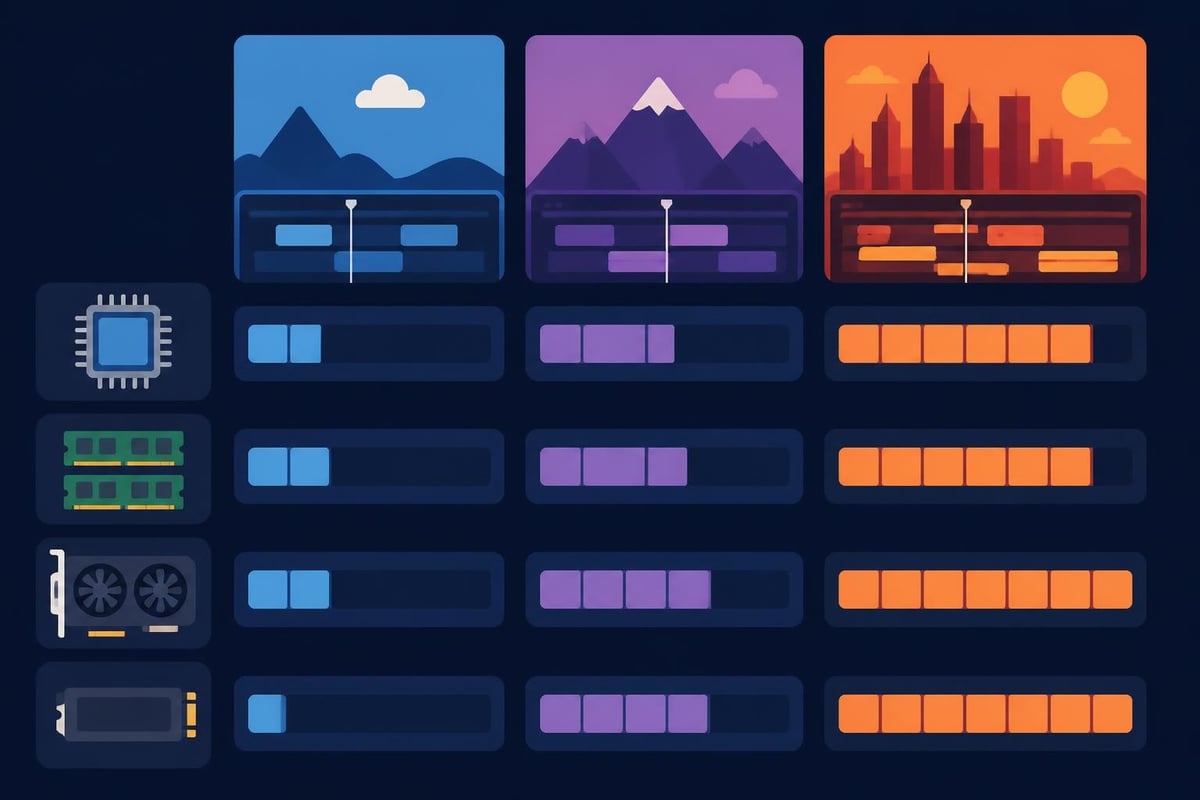
Budget software won't help if your computer can't run it smoothly. Most affordable editors in 2026 require:
Storage speed matters more than CPU speed for playback smoothness. An SSD for your project files and media cache delivers better editing experience than upgrading your processor.
Hardware choices directly impact which software runs well. Recent hardware coverage from Ars Technica highlights how falling component prices make capable editing rigs more accessible than ever.
The best cheap video editing software becomes even more powerful when you build efficient workflows around it.
High-resolution footage taxes even powerful computers. Proxy workflows create lower-resolution copies for editing, then reconnect full-quality files for final export. This technique works brilliantly on budget hardware and free software.
Simple proxy workflow:
Your editing experience stays responsive while final output maintains full quality. DaVinci Resolve, Shotcut, and even CapCut support proxy workflows.
Creating graphics, lower thirds, and transitions from scratch consumes hours. Smart creators build reusable templates that maintain brand consistency while accelerating production.
Even free editing software lets you save custom presets. Spend time once designing your intro sequence, color grade, or title card. Save it as a template. Now every future video inherits that polish in seconds instead of minutes.
Repetitive tasks kill productivity. Look for batch capabilities in your chosen editor: apply color correction to multiple clips simultaneously, export multiple video versions in one pass, or sync audio across an entire project automatically.
Marketers and agencies especially benefit from batch workflows when creating variations of the same content for different platforms. Record once, export to Instagram, YouTube, TikTok, and LinkedIn formats simultaneously.
The best cheap video editing software serves most creators well. But certain scenarios justify upgrading to professional tools or considering alternative approaches entirely.
Budget software excels at individual creator workflows. Once you're managing teams, complex projects, or client work with tight turnarounds, limitations become costly bottlenecks.
Here's the uncomfortable truth: your time has value. Spending eight hours learning color correction or ten hours editing a single video might cost more than the software you're trying to save money on.
Quick math on editing time:
Even accounting for learning curve improvement, content creators often spend 4-5 hours per finished video. That's time not spent on strategy, audience building, or revenue-generating activities.
Professional services like beCreatives offer unlimited editing starting around $500 monthly, delivering unlimited revisions and faster turnarounds than solo editing. When your time is better spent creating rather than editing, unlimited video editing services become the smarter budget choice.

Software is only part of the equation. Your physical setup dramatically affects editing efficiency and the quality you can achieve with affordable tools.
Color accuracy and screen real estate transform the editing experience. You don't need a $2,000 reference monitor, but a $300 IPS display with 99% sRGB coverage makes color grading reliable and timeline organization manageable.
Budget monitor checklist:
Wired’s home office guide includes practical monitor recommendations that balance quality and affordability for creative work.
4K video files consume 300-400MB per minute. An hour-long project with B-roll and multiple takes quickly reaches 50-100GB. Budget creators need smart storage strategies:
| Storage Type | Use Case | Speed | Cost per TB |
|---|---|---|---|
| NVMe SSD | Active projects, cache | Fastest | $80-100 |
| SATA SSD | Recent projects | Fast | $50-70 |
| HDD 7200 RPM | Archive, backup | Moderate | $20-30 |
| Cloud Storage | Collaboration, backup | Variable | $10/month |
Keep active projects on SSD for smooth playback. Archive completed projects to HDD. Back up irreplaceable footage to cloud storage. This tiered approach maximizes performance while controlling costs.
A comfortable keyboard and mouse matter during long editing sessions, but these three peripherals deliver outsized value:
Small investments that compound over hundreds of editing hours. Your back, wrists, and ears will thank you.
Beyond the mainstream affordable editors, open-source communities maintain powerful free tools worth exploring.
Kdenlive brings professional features to Linux, Windows, and macOS without cost or restrictions. The project has matured significantly since 2024, with improved stability and modern UI updates.
Proxy editing, keyframe animation, countless effects, and active development make Kdenlive competitive with commercial software. The Linux-first development means occasional bugs on Windows, but the price (free) and feature set compensate for rough edges.
OpenShot prioritizes simplicity over advanced features. Perfect for absolute beginners who find DaVinci Resolve overwhelming but need more than smartphone apps provide.
Unlimited tracks, 70+ transition effects, title templates, and simple keyframe animation cover basic editing needs. Export presets optimize for common platforms (YouTube, Vimeo, social media) without requiring codec knowledge.
The trade-off is performance. OpenShot can lag with complex timelines or high-resolution footage on modest hardware. Keep projects simple and you'll stay productive.
Olive represents the future of open-source editing: node-based workflows, non-destructive editing, and modern architecture designed for GPU acceleration. Currently in alpha/beta, Olive shows immense promise but isn't quite production-ready for mission-critical work.
Worth watching as development continues. By late 2026 or early 2027, Olive could challenge DaVinci Resolve as the best free option for serious creators.
Choosing the best cheap video editing software comes down to matching features with your specific needs and workflow preferences.
Decision framework:
Don't chase features you'll never use. The simplest tool that accomplishes your goals is always the best choice. Fancy software won't make your content better if you're spending more time wrestling with the interface than creating.
For content creators publishing frequently, editing becomes a volume game. Even the best cheap video editing software requires significant time investment per video. At scale, outsourcing editing isn't an expense, it's a multiplier that frees you to create more content and build your audience faster.
When building a home setup for video work, consider how your editing software integrates with your broader content ecosystem. If you're creating music videos, for example, specialized software for music video production might complement your main editor.
Your operating system influences which budget editors work best and perform most reliably.
Mac users have access to iMovie free with every Mac, offering surprising power for zero cost. The simple interface and excellent performance on Apple Silicon make it ideal for beginners.
Beyond iMovie, DaVinci Resolve runs beautifully on M1/M2/M3 Macs, taking advantage of unified memory architecture for smooth playback even on base-model machines. TechRadar’s Mac editing guide covers how to maximize video editing performance across the MacBook and iMac lineup.
Final Cut Pro sits above "budget" territory at $299, but represents a one-time purchase that includes updates. For professional Mac users, it's worth considering alongside cheaper alternatives.
Windows users have the widest selection of free and affordable editors. DaVinci Resolve, Shotcut, Kdenlive, OpenShot, and all commercial budget options run on Windows.
Windows' flexibility with hardware means you can build or buy capable editing machines at lower price points than Mac equivalents. A $700 Windows desktop can outperform a $1,500 MacBook for pure editing performance.
The downside is optimization variability. Mac software benefits from limited hardware configurations. Windows editors must account for countless hardware combinations, occasionally resulting in driver conflicts or performance quirks.
Linux users have excellent free options (Kdenlive, Shotcut, OpenShot) but limited commercial alternatives. DaVinci Resolve offers a Linux version, though codec support can require command-line troubleshooting.
For creators committed to open-source ecosystems, Linux provides stable, capable editing platforms. Just verify your camera's codec compatibility before committing.
Budget video editing software has never offered more capability for less money, but the best tool is the one that keeps you creating consistently. Whether you choose DaVinci Resolve's professional power, CapCut's social media optimization, or Filmora's beginner-friendly approach, match the software to your actual needs rather than chasing features. If you find editing consuming more time than creating, beCreatives delivers unlimited professional video editing that scales with your content ambitions, letting you focus on ideas while experienced editors handle the technical execution.
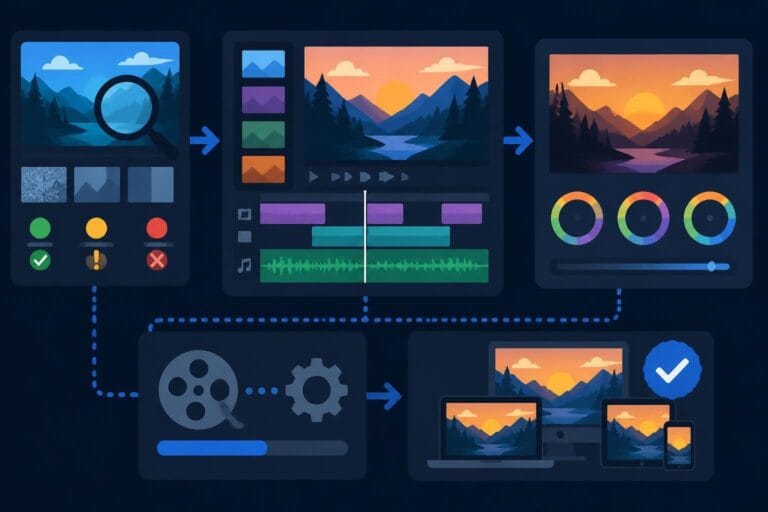
Discover how post production video editing transforms raw footage into professional content. Learn workflows, tools, and outsourcing tips.
Master video editing HD quality standards, encoding settings, and workflow best practices to deliver professional content in 2026.
Discover what makes a YouTube video editing course worth your time in 2026, plus smarter alternatives for busy creators and agencies.
Looking to hire video editor for YouTube? Discover the best hiring strategies, what to look for, and how to build a winning content team in 2026.
Discover the best music video editing software for 2026. Compare features, pricing, and workflow tools to create stunning music videos faster.
Looking for a video editing company near me? Learn how to choose the right partner, what to expect, and whether local is best in 2026.
Discover how video editing AI online is changing content creation in 2026. Explore smart tools, workflows, and what creators really need to know.
Master wedding videography editing with expert tips on storytelling, pacing, and delivery. Learn how to transform raw footage into cinematic films.
Choosing an HD video editing app in 2026? Discover features, performance tips, and how professionals handle high-definition content.
Discover the best free simple editing software for videos and photos in 2026. Compare features, learn what works, and decide when to DIY or outsource.

Editing videos yourself can take a lot of your precious time, but do not worry – we‘ve got you covered! Our highly skilled Video Editors are here to speed up the process and give you time to create more content.