YouTube isn't getting any easier. With over 500 hours of video uploaded every minute, standing out means more than just hitting record. The best editing for YouTube separates viral content from videos that disappear into the algorithm void. Whether you're a solo creator juggling a dozen projects or an agency managing multiple client channels, your editing workflow directly impacts your growth, watch time, and revenue. The good news? You have more options than ever in 2026 for creating scroll-stopping content without burning out.
What Makes Great YouTube Editing Different
YouTube editing isn't the same as editing for Instagram Reels or TikTok. The platform rewards retention, so your cuts need to hold attention for minutes, not seconds. Great YouTube editing balances pacing, storytelling, and strategic hooks that keep viewers clicking "next video" instead of bouncing.
Retention-Focused Editing Techniques
The first 30 seconds determine whether viewers stick around. Successful YouTube editors cut ruthlessly during this window, removing hesitations, long pauses, and slow wind-ups. Pattern interrupts like quick cuts, zoom-ins, and visual effects every 3-5 seconds prevent viewer drop-off.
Key retention techniques include:
- Jump cuts to eliminate dead air and maintain energy
- Strategic B-roll placement to illustrate points visually
- Text overlays highlighting key phrases or statistics
- Sound effects and music changes to signal topic shifts
- Visual callbacks referencing earlier content points
Mid-roll retention matters just as much. The best editing for YouTube maintains consistent pacing throughout, using chapter markers, progress indicators, and teaser hooks before potential exit points. Research on YouTube engagement shows that controversial or high-engagement content requires careful editorial balance to maximize both retention and monetization potential.
Platform-Specific Technical Requirements
YouTube's algorithm favors certain technical specifications. Your editing workflow should output videos in 1920×1080 minimum resolution, though 4K (3840×2160) performs better in search rankings. Frame rates of 24fps, 30fps, or 60fps all work, but consistency matters more than choosing the "perfect" number.
Audio quality often matters more than video quality. The best editing for YouTube includes noise reduction, compression to normalize volume levels, and strategic use of royalty-free music that doesn't compete with voiceover. Your final export should use H.264 codec, MP4 format, and stay under 128GB to ensure smooth uploads.
Comparing Software Options for YouTube Creators
The software landscape has exploded in 2026, with options ranging from free mobile apps to professional suites costing thousands. Choosing the right tool depends on your content type, skill level, and how much time you want to spend editing versus creating.
Professional Desktop Software
Adobe Premiere Pro remains the industry standard, offering unlimited tracks, advanced color grading, and seamless integration with After Effects for motion graphics. It handles 8K footage without breaking a sweat, but the learning curve is steep and the $54.99/month subscription adds up fast. Creative Bloq’s comprehensive software guide breaks down the pros and cons of professional-level editing tools available in 2026.
DaVinci Resolve offers professional features with a generous free tier, making it attractive for budget-conscious creators. The color correction tools are unmatched, though the interface feels less intuitive than competitors. Final Cut Pro remains a Mac-only favorite, with magnetic timeline features that speed up basic edits considerably.
| Software | Monthly Cost | Best For | Learning Curve |
|---|---|---|---|
| Adobe Premiere Pro | $54.99 | Professional creators, agencies | Steep |
| DaVinci Resolve | Free/$295 | Color grading, feature films | Moderate-Steep |
| Final Cut Pro | $299 one-time | Mac users, fast turnarounds | Moderate |
| Adobe Premiere Elements | $99.99 one-time | Beginners, hobbyists | Easy |
Adobe Premiere Elements 2026 bridges the gap between consumer and professional tools, offering guided editing modes alongside advanced features. It's ideal for creators who want room to grow without paying monthly fees.
AI-Powered Editing Tools
AI has transformed video editing from tedious to almost automatic in some workflows. Tools like Descript transcribe your video, letting you edit by deleting text rather than scrubbing through timelines. Remove filler words like "um" and "uh" with one click, or generate AI voices to fix audio mistakes.
Kapwing leads the AI editing revolution with features like automatic subtitle generation, background removal without green screens, and smart scene detection that suggests cut points. TechRadar’s Kapwing review highlights how AI-powered tools are making professional-quality editing accessible to non-editors.
AI editing capabilities in 2026:
- Auto-transcription with 98% accuracy
- Smart B-roll suggestions based on transcript analysis
- One-click background music that adjusts to speaking
- Automatic chapter generation from content analysis
- AI-generated thumbnails optimized for CTR
The catch? AI tools work best for straightforward content like talking-head videos, interviews, and educational content. Complex storytelling, creative transitions, and brand-specific styles still need human judgment. Academic research on AI in content creation reveals that most successful creators use AI to handle repetitive tasks while focusing their creative energy on strategic decisions.
Mobile Editing Solutions
Mobile editing has matured beyond basic trimming. CapCut dominates the space with desktop-quality features in a free mobile package, including keyframe animation, chroma keying, and multi-track editing. Adobe Premiere Rush offers a simplified mobile workflow that syncs projects across devices, perfect for creators who start edits on phones and finish on desktops.
The latest mobile editing apps provide surprising power for on-the-go creators. LumaFusion on iPad rivals desktop tools for complexity, while InShot keeps things simple for quick social media edits. The best editing for YouTube often starts with mobile rough cuts during commutes, finished later on more powerful machines.
Building Efficient YouTube Editing Workflows
Software matters less than workflow. The difference between spending 10 hours per video versus 2 hours comes down to systems, templates, and strategic shortcuts that compound over time.
Pre-Production Setup That Saves Hours
Organization before filming cuts editing time dramatically. Create a shot list during scripting so you know exactly what B-roll you need. Use a naming convention for files (date_project_version) so you never hunt for the right clip. Record separate audio on dedicated microphones rather than relying on camera audio that needs extensive cleanup.
Pre-production checklist for faster editing:
- Write a detailed script with marked B-roll moments
- Create a visual style guide (fonts, colors, transitions)
- Build a music library organized by mood and energy level
- Set up project templates with standard effects and sequences
- Record B-roll in batches to minimize setup time
Templates transform repetitive work into drag-and-drop simplicity. Create intro sequences, lower-third templates, and standard transition styles once, then reuse them across dozens of videos. This builds brand consistency while slashing production time.
The Assembly-Line Editing Approach
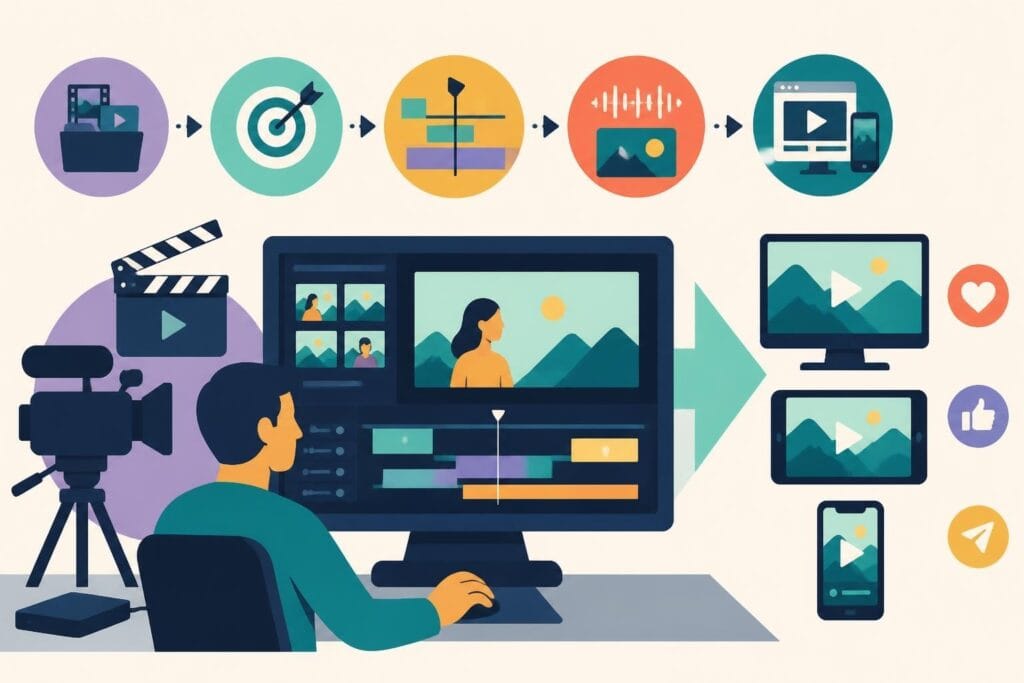
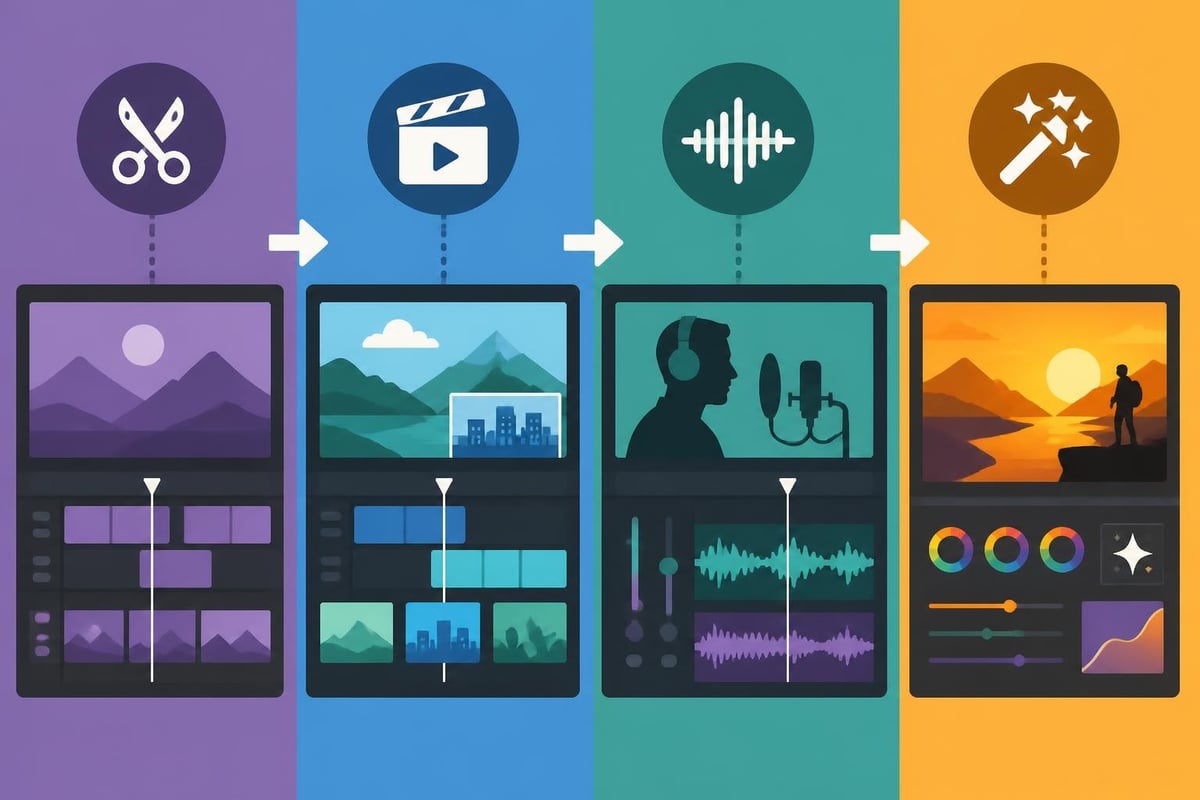
Professional YouTube editors work in passes rather than completing one video start to finish. The first pass focuses purely on content: trimming footage, arranging clips in the right order, and removing obvious mistakes. The second pass adds B-roll and visual interest. The third handles audio mixing and color correction. The final pass adds motion graphics, text overlays, and thumbnail creation.
This assembly-line approach lets you batch similar tasks, using the same tools and mental mode for extended periods. It's dramatically more efficient than constantly switching between creative and technical thinking. When managing multiple YouTube channels, you can edit 5 videos to rough-cut stage, then polish all 5 with consistent style and quality.
| Editing Pass | Focus Area | Time Estimate | Tools Used |
|---|---|---|---|
| Pass 1: Assembly | Content cuts, sequencing | 30-45 min | Timeline, razor tool |
| Pass 2: Visual | B-roll, transitions | 20-30 min | Stock footage, effects |
| Pass 3: Audio | Music, SFX, mixing | 15-25 min | Audio mixer, EQ |
| Pass 4: Polish | Graphics, color, export | 20-30 min | Text tools, color panels |
Keyboard Shortcuts and Speed Techniques
Learning keyboard shortcuts might seem tedious, but the time savings are exponential. In Premiere Pro, mastering just 10 shortcuts (C for cut, V for select, spacebar for play/pause, J-K-L for rewind-pause-forward) speeds up basic editing by 40%. Add in ripple delete, blade tool, and marker placement, and you're working twice as fast.
Custom keyboard layouts take this further. Map your most-used effects to single keystrokes. If you constantly add zoom transitions, putting that on one button saves thousands of clicks across a year of editing. The best editing for YouTube prioritizes speed without sacrificing quality, and shortcuts make that possible.
When Outsourcing Beats DIY Editing
Here's the truth nobody talks about: editing takes time you could spend creating more content, building partnerships, or actually growing your business. A 10-minute YouTube video typically requires 3-8 hours of editing, depending on complexity. That's half a workday or more per video.
The Real Cost of DIY Editing
Calculate your hourly rate. If you make $50/hour from client work, YouTube sponsorships, or your primary business, spending 5 hours editing one video costs you $250 in opportunity cost. That doesn't include the mental fatigue from context-switching between creative and technical work, or the reality that most creators aren't professional editors.
Hidden costs of self-editing:
- Learning curve for software and techniques
- Decision fatigue from thousands of micro-choices
- Delayed upload schedules affecting algorithm performance
- Inconsistent quality as you experiment and learn
- Burnout from trying to do everything yourself
Professional video editors work faster because they edit all day, every day. What takes you 5 hours takes them 90 minutes. They know shortcuts, have template libraries, and make confident decisions without second-guessing every transition. The best editing for YouTube often comes from specialists who live and breathe post-production.
What Professional Editing Services Provide
Hiring a YouTube video editor gives you more than just finished videos. You get consistency across your channel, faster turnaround times that let you publish more frequently, and access to advanced techniques you'd never learn on your own.
Modern editing services like beCreatives offer unlimited editing through subscription models, making professional post-production affordable for growing channels. Instead of paying per video or per hour, you get a dedicated editor who learns your style, understands your audience, and delivers polished videos on a predictable schedule. Unlimited storage means you're not juggling hard drives, and built-in revision systems ensure you get exactly what you envision.
The mental relief matters as much as the time savings. When you finish filming, you upload raw footage and move on to the next project. No more late nights wrestling with export settings or wondering if your color grade matches last week's video. You stay in your creative zone while specialists handle the technical execution.
Evaluating Editing Service Options
Not all editing services deliver equal value. Look for providers with YouTube-specific experience, demonstrated understanding of retention editing, and portfolios matching your content type. Turnaround time matters; if you publish three times weekly, you need editors who can keep pace without sacrificing quality.
Questions to ask potential editing services:
- How many YouTube creators do you currently work with?
- What's your average turnaround time from upload to finished video?
- Do you provide unlimited revisions or charge extra for changes?
- Can I see examples of long-form YouTube content you've edited?
- How do you handle feedback and communication?
Pricing models vary widely. Some services charge per video ($50-$300 depending on complexity), while others offer monthly subscriptions starting around $400-$800 for unlimited editing. The unlimited video editing model works best for consistent creators who publish regularly and want predictable budgets. Compare video editing prices across different service types to find what aligns with your publishing schedule and budget.

Advanced Techniques That Drive Results
Once you've mastered basic editing or found the right service partner, advanced techniques separate good YouTube channels from great ones that consistently hit viral moments and maintain loyal audiences.
Strategic Pattern Interrupts
Viewer attention spans fluctuate throughout videos. The best editing for YouTube uses pattern interrupts every 15-30 seconds during slower sections: a sudden zoom, a well-placed sound effect, a text popup with a surprising statistic. These micro-jolts reset attention without feeling gimmicky when executed with restraint.
Study your analytics to see exactly where viewers drop off. If 40% leave at the 2:30 mark, that's where you need a pattern interrupt, a topic shift, or a compelling teaser about what's coming next. Edit specifically to your retention graphs rather than following generic best practices.
Thumbnail-First Editing Strategy
Your thumbnail matters more than your intro. It's what gets the click. Smart creators edit with their thumbnail in mind, deliberately creating 2-3 visually striking moments during filming that work as thumbnail candidates. This might mean dramatic lighting for a reveal, an exaggerated facial expression, or a visually impressive B-roll moment.
During editing, mark potential thumbnail frames with markers. Export multiple options and A/B test them using YouTube's built-in tools. The video that gets clicked gets watched, so optimizing for that initial click often matters more than perfecting your color grade.
Building a Signature Style
Consistency builds recognition. When viewers immediately recognize your editing style before seeing your name, you've achieved brand differentiation. This might be a signature transition, a specific color palette, recurring visual gags, or a unique way of presenting information.
Create a style guide documenting your fonts, colors, transition preferences, music choices, and graphic treatments. Share this with your editing team or reference it yourself to maintain consistency. Over time, your signature style becomes shorthand for quality, making new viewers more likely to subscribe after watching just one video.
Optimizing Your Editing Tech Stack
The tools supporting your editing workflow matter as much as the software itself. Storage, project management, and asset organization prevent bottlenecks that slow down production.
Storage and Asset Management
YouTube creators accumulate terabytes of footage fast. A 4K video generates approximately 375GB per hour of raw footage. Managing this requires either massive local storage (8TB+ external drives) or cloud solutions that sync across devices and team members.
Cloud storage options like Google Drive, Dropbox, or specialized video platforms let editors access footage from anywhere while providing automatic backups. The downside is cost and upload/download time. Many creators use a hybrid approach: local SSDs for active projects, cloud backup for archived footage, and compressed proxies for remote editing.
Storage considerations for YouTube creators:
- Local NVMe SSD for current projects (1-2TB)
- External HDD for archived footage (8-16TB)
- Cloud backup for irreplaceable content
- Proxy workflow for 4K/8K footage
- Organized folder structure by project and date
Plugin and Extension Libraries
Plugins extend your editing software's capabilities without learning entirely new tools. LUTs (Look-Up Tables) apply professional color grades in one click. Transition packs provide motion-designed scene changes that would take hours to create manually. Sound effect libraries offer thousands of audio elements organized by category.
Build a curated plugin library over time rather than downloading everything available. Too many options creates decision paralysis. Focus on plugins that solve specific problems in your workflow: a denoiser for low-light footage, a stabilizer for handheld shots, or a title animator for consistent lower-thirds.
Quality Control Systems
Mistakes slip through even with careful editing. Create a quality control checklist you run before publishing: check audio levels don't peak above -3dB, verify no frames are duplicated or missing, confirm color consistency across scenes, test that all links in the description work, and watch the full video at 1.5x speed to catch jarring edits.
If you work with an editing service, establish a review process. First-time editors should deliver videos 48 hours before your publish deadline, giving you time to request revisions. As they learn your style, this buffer can shrink, but never publish without personally watching the final video at least once.
Scaling YouTube Production Without Burnout
The most successful YouTube channels in 2026 publish consistently, often multiple times per week. Achieving this without burning out requires systems that separate creative work from repetitive tasks.
Batch Production Workflows
Filming and editing in batches smooths out workload peaks. Instead of creating one video start-to-finish weekly, film four videos in one day, then edit them over the following week. This batching reduces setup time, maintains consistent energy levels, and provides buffer content for weeks when life gets chaotic.
The best editing for YouTube supports batch workflows through templates and presets that maintain consistency across multiple videos. Film your weekly tips series all at once using the same setup, then edit all four episodes back-to-back using identical style treatments. Variety comes from content, not constantly reinventing your visual approach.
Delegating Non-Creative Tasks
Editing isn't the only task draining your time. Thumbnail creation, description writing, keyword research, social media promotion, and comment management all consume hours weekly. As your channel grows, delegate everything that doesn't require your unique voice or perspective.
Many creators resist outsourcing because they believe only they understand their content. The reality? Professional editors, thumbnail designers, and social media managers often do it better because they specialize. Your job is creating unique content and being the face of your brand. Everything else can be systemized and delegated. Services offering comprehensive support beyond just editing let you scale production while maintaining quality and consistency across all elements.
Choosing the best editing for YouTube depends on your goals, budget, and how you want to spend your time. Whether you're exploring powerful software, leveraging AI tools, or ready to hand off post-production entirely, the key is finding a system that lets you publish consistently without sacrificing quality or your sanity. If you're spending more time editing than creating, it might be time to explore how beCreatives can take video editing off your plate entirely with unlimited editing services, dedicated editors who learn your style, and the support systems that help you stay consistent, visible, and growing on YouTube.